
Monday, October 25, 2010
VLC comes to the iPhone and iPod Touch (iPad too)

Monday, August 9, 2010
Play YouTube videos automatically in a list (even looping them!)
Here's how to put together a list of YouTube videos that plays automatically one to the next (or even in a continuous loop): http://screencast.com/t/Y2U2N2M2
Tuesday, July 6, 2010
From the Official Google Blog: Grandmother’s guide to video chat
Think video chat is too complicated to try? Think again. Even your grandmother can do it! Visit google.com/chat/grandma/ for an easy introduction.
Here's the office blog post from Google: Official Google Blog: Grandmother’s guide to video chat
Tuesday, June 15, 2010
Recovering gracefully from presentation glitches

Those of us who use technology during any type of presentation in front of a group (classroom teaching, projects, pitches, etc.), know that glitches are inevitable, whether it's a memory slip, a technology issue, or a disruptive participant. What matters is how you recover. Visit this blog post to see how one of the masters of presentation technique recovered from glitches during a recent big deal event: Steve Jobs' Strategies for Overcoming Presentation Glitches.
Thursday, April 8, 2010
Kodak Zi6 drops in price
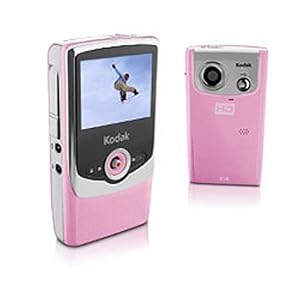
New pocket video cameras keep coming out, which means the prices on the older models keep coming down. The Kodak Zi6 has now dropped to about $85 on Amazon, so if you were thinking of purchasing one, now might be a good time: http://bit.ly/aHXdlf ...yes, this price is for the pink-colored one, but why not let your camera have a little flair?
Tuesday, March 2, 2010
Quickly cut out a section of an mp3

Thanks, Lifehacker, for another great tip.
Monday, February 22, 2010
Getting started with the Canon HF10
One of the camcorders available for borrowing from Media Services is the Canon HF10, an easy-to-use yet powerful high-definition camcorder. Below is a short video we made to help users get started with the HF10. To borrow an HF10, submit an Equipment and Help Request (ahead of time) on our website.
If you'd like more information about the HF10, visit our website at www.su.edu/library/media and click on "Online Help." Then, click the "Canon HF10" tab.
If you'd like more information about the HF10, visit our website at www.su.edu/library/media and click on "Online Help." Then, click the "Canon HF10" tab.
Tuesday, February 2, 2010
New Suggestions for Screencasting

I've added links to some new tools for screencasting ("screencasting" means making videos of what is happening on your computer screen) to the Media Services Online Help page. Screencasting is a great instructional tool for distance learning, especially if you find often find yourself describing over the phone how to do something on a computer. Wouldn't it be much easier to just show the person rather than trying to describe it in words? To learn more, visit www.su.edu/library/media and clicking on "Online Help." Then, click on the "FREE STUFF!" tab.
Monday, January 4, 2010
Classrooms Tab

Are you teaching (or taking a class) in a classroom in which you have not had a class in the past? Making a presentation in a conference room with which you are not familiar? Wondering what audio-visual equipment is available in a particular room at SU?
Wonder no more. The answers are now together in one place: the new "Classrooms" tab on the Media Services Online Help page. You can access our Online Help page by visiting www.su.edu/library/media and clicking on "Online Help." Then, click on the "Classrooms" tab. There you will find:
- A table listing which equipment is available in which rooms (in plain English; no complicated tech-speak)
- Links to web-viewable and printable instruction sheets for each classroom
The "Classrooms" tab is still a work in progress, but we hope to have every classroom and meeting room listed within the next couple weeks, and more and more instruction sheets available as time goes on.
Have feedback or suggestions? Visit www.su.edu/library/media and click on Feedback.
Thursday, December 3, 2009
Live Chat - a trial run

Media Services is offering a new service on a trial basis: live chat support. Have a question or a problem that you'd like to talk to a Media Services staffperson about? Visit our webapge (www.su.edu/library/media), click on "Online Help," and then click on "Live Chat." You'll see a link to take you to the chat room. Alternately, you can simply visit tinychat.com/sumedia. There may not always be a staffperson in the chat room, but we will try to have someone there as often as we can.
The password for the chat room is "media" (all lowercase). When you are asked to "sign in" after entering the room password, simply type your name (your first name or whatever you prefer to be called) and click "LOGIN." You'll also see tabs that allow you to use your Facebook or Twitter identities to login, but that is entirely optional.
Tinychat includes options for text chat (instant messaging), audio chat, video chat, and (experimental) screensharing. You can simply visit the chat room and start typing messages, or you can talk face-to-face if your computer has a webcam.
We are very interested in feedback during this trial to determine whether we will continue to offer this service. Let us know what you think! Visit www.su.edu/library/media and click on "Feedback."
Saturday, October 31, 2009
Biggest multitouch table yet?

If you think SMART Boards are impressive, check this out (link below). It's a 100-inch(!) multitouch table that supports 50 simultaneous touch points! Amazing.
Who wants to buy one of these for Shenandoah University? Anonymous donors: I'm looking at you...
From Engadget: Ideum's 100-inch MT-50 multitouch table supports 50 simultaneous touch points (video)
Friday, October 2, 2009
Video too big? Try iSquint
 (photo by D'Arcy Norman)
So, you've recorded a whole bunch of beautiful video clips with one of our new pocket video cameras, and you want to upload them to iTunes U or share them online in some other way... but those files are so big! What's a person to do? Obviously, you want your files to be a bit smaller for quicker uploading and downloading, but you still want the quality to be high enough that the video looks decent.
You could import each file individually into iMovie and then follow the instructions for How to prepare an iMovie or Windows Movie Maker project for upload to iTunes U under the "iTunes U Help" tab on Media Services' Online Help page. However, that would be time-consuming and would only be worth it if you needed to edit the clips or put them together into one longer movie file. Let's say, in this case, you just want to use the clips as they are but make them all a bit smaller, as a batch.
Enter iSquint. It's simple, fast, and doesn't have lots of confusing options. For most purposes, you can just make a couple easy choices like choosing "TV" or "iPod" (I also recommend checking the box for "H.264 Encoding"), and iSquint will make perfectly watchable--but much smaller--video files out of your big behemoths.
Need a similar option for the Windows platform? Try FormatFactory.
Both iSquint and FormatFactory are linked on our Online Help page, along with other helpful information. Click the "iTunes U" tab, then, under "For Everyone," click on Free software for creating and converting audio and video.
Tuesday, August 4, 2009
How to tame a pile of tangled cables for $5
Yes, many of us have a box of audio, video, and data cable spaghetti, maybe at home, maybe at the office, maybe both. Go ahead and admit it; you're not the only one.
We don't really want to throw away all of those cables because they might come in handy--who wants to spend $7 at Radio Shack one day in the future for a cable that was sitting around for years until we needed it? And yet, the cable mess keeps looking more and more impenetrable and it seems to grow like a dust bunny.
Don't waste your money on a five-pack of colored velcro cable ties for $4. You can pick up a FIFTY-pack of velcro cable ties at OfficeMax or Lowe's for $5 (OfficeMax Item #: 20822371).
Once the cables have been velcro-ed, you can just take out the cable you need, and leave the velcro tie attached while you use it; when you are finished, wrap it neatly, press the velcro, and you'll be able to pull it out of the pile without fighting tangles next time.
...and maybe, just maybe, that spaghetti will start to make sense (or at least look more like linguine).
Monday, August 3, 2009
Why CDs and DVDs are gradually on their way out (VHS and audio cassette tape is already there)
 (photo by nate steiner)
Media Services encourages you to share your audio and video recordings without burning to disc (CD or DVD) or recording to tape (like audio cassettes or VHS) whenever possible. Why?
- Sharing audio and video files online or using removable (often USB-connected) drives makes it easy to make virtually unlimited numbers of backup copies, often with just a few clicks of your mouse.
- CDs, DVDs and all forms of tapes can easily become scratched, worn out, lost or stolen. By contrast, a digital file can quickly and easily be backed up to multiple computers, external hard drives, network drives, or online backup services so that even if one copy is lost or deleted, you have multiple redundant copies, just in case.
- Sharing files online or with removable (reusable) drives is often more environmentally friendly, at least in terms of avoiding unnecessary waste. Think of how much space in landfills is taken up by old discs, tapes, cases, packaging, etc.
- There are a wealth of highly effective ways to post audio and video online (iTunes U, YouTube, etc.) and instantly share it with a world-wide audience.
- There are plenty of tools available for sending large files from one place to another, even files too big to email. My favorite method is to use the Public folder feature of Dropbox (free accounts available with 2GB storage; pay accounts have much more storage). Why wait for a CD or DVD to make it through the mail or pay for FedEx (which could still get lost or damaged) when you can send a file to someone miles away and he/she can download it within the hour? You can quickly verify that it was received and save money at the same time!
- Sharing and/or buying files online is where the trends are going. Digital download sites like the iTunes Store or Amazon's Mp3 Music Downloads are taking market share from CDs, DVDs and the like. Even Netflix, which built its business on DVDs-by-mail, is adding more and more instantly-available movies via internet.
Creating chapter markers in iMovie '08
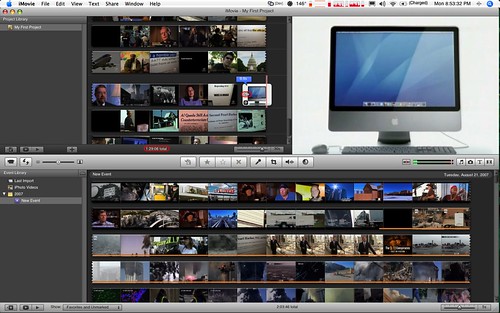 photo by udt_greenberet1123
In iMovie '08, Apple did not include the ability to add chapter markers to movies, a feature present in previous version of iMovie. Perhaps Apple was trying to encourage users to share movies online instead of using physical discs, but for those that needed to burn their movies to DVD, adding chapters (for easy navigation of the finished DVD) was an essential feature and sorely missed.
iMovie '09 restored this feature, and improved upon it: http://discussions.apple.com/thread.jspa?threadID=1884949
If you got your MacBook from SU's new iMLearning program, you have iMovie '09 and therefore can create chapter markers from within iMovie.
However, if you purchased your Mac (or the iLife suite) in the last couple years, you may have iMovie '08. Not sure which version you have? Simply open iMovie and go to "iMovie-->About iMovie." The version will be displayed in the popup window.
Media Services encourages you to share your audio and video recordings without burning to disc whenever possible, for a number of reasons. Read this related post for more information.
So, what if you have iMovie '08 and you really need to burn a DVD with chapter markers? One intrepid blogger has posted detailed instructions on how to do so: http://imovie08.blogspot.com/2007/08/how-to-add-chapter-markers.html
...as well as an addendum from the resulting blog-comments conversation: http://imovie08.blogspot.com/2007/10/how-to-add-chapter-markers-addendum.html
Just for fun: hacking an old VCR to feed your cat while you are away

see more Lolcats and funny pictures
Are you a weekend tinkerer? Here's an entertaining--and potentially useful--look at how to re-purpose an old VCR as a vacation cat feeder: http://blog.makezine.com/archive/2009/01/maker_workshop_vcr_cat_feeder.html (From Make: online magazine)
Death by PowerPoint
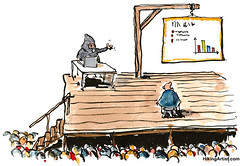 photo by HikingArtist.com
Normally, creating PowerPoint presentations is IC's area of expertise, but I've just got to share this excellent advice on how to not bore your audience to death when using presentation software: http://www.slideshare.net/thecroaker/death-by-powerpoint
Thursday, July 30, 2009
Software (some free) for burning CDs and DVDs
 Want to burn your audio or video files to a CD or DVD?
Windows doesn't include a comprehensive set of tools by itself (though many computer makers include third-party software to help). Here are some software tools recommended by readers of the consistently-great blog Lifehacker: Five Best CD and DVD Burning Tools (Nov 30, 2008)
By contrast, Mac OS X includes some great tools for burning data CDs and DVDs, burning video DVDs, burning audio CDs, burning disk images, and more. A useful alternative to the built-in tools is an application called Burn, which won't cost you a dime.
Monday, July 20, 2009
Save a segment of video from a DVD

Want to save just a short segment of a DVD-video to use in class? You might like to try this new method using VLC 1.0: http://lifehacker.com/5318807/vlc-10-records-video-from-dvds
Subscribe to:
Posts (Atom)